
How to Update PvZ Fusion Without Losing Your Save Data – Android & PC (2026)
A lot of players have lost their PvZ Fusion save file. It happens the same way almost every time: they see a new version, uninstall the current game, install the new one, and find that every plant they unlocked, every Almanac entry, every Adventure chapter completion gone.
The fix is simple, but it requires knowing the right order of operations before you start. This guide covers the exact update process for both Android and PC, including how to back up your save file before touching anything, and how to restore it if something goes wrong.
One important note: this guide covers the update process only not the initial download and installation. If you need that, the installation steps are on the Homepage.
Why Updating Wrong Deletes Your Save
PvZ Fusion stores your save data in a specific folder on your device, separate from the game files themselves. The problem is that uninstalling the app on Android, or deleting the game folder on PC, takes the save data with it.
On Android, save data is stored inside the app’s data directory. When you uninstall an app on Android 8.0+, that entire directory is deleted. If you uninstall PvZ Fusion to “clean install” the new version, your save is gone before the new version even downloads.
On PC, your save data is in a different location from the game folder but many players delete the wrong folder by accident, or extract the new version into the same directory and overwrite files.
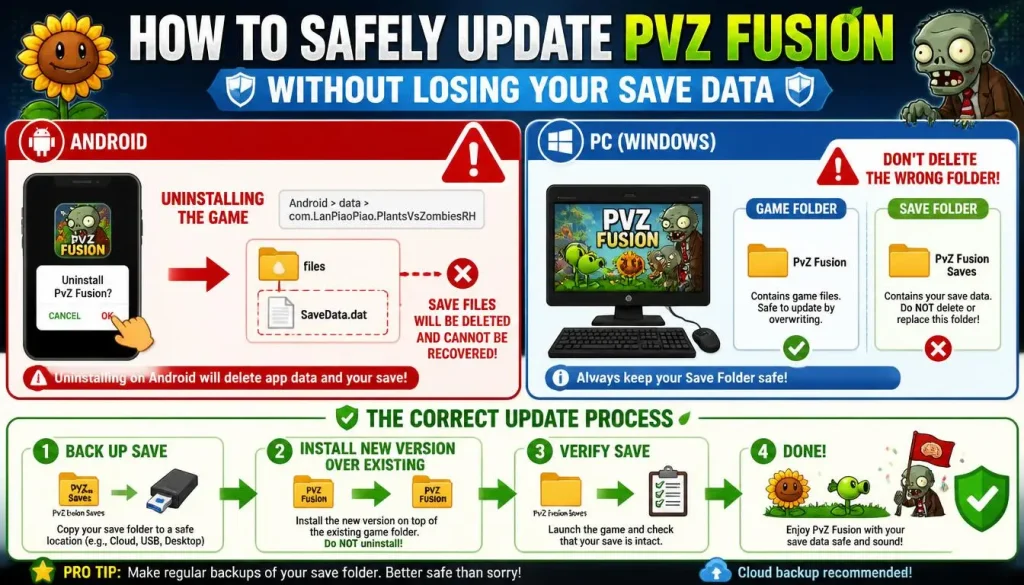
The correct process is: back up save => install new version over existing => verify => done. Never uninstall first.
Before You Update Back Up Your Save First
Do this before touching anything else. Takes 2 minutes and protects every hour you’ve put into the game.
Save File Location on Android
Android/data/com.LanPiaoPiao.PlantsVsZombiesRH/files/
On Android 11+, accessing this path requires a file manager with special permissions. The built-in Files app on most phones can reach this directory. If yours can’t, use ZArchiver or MiXplorer — both can access Android/data on Android 11 and 12 without root.
What to copy: Copy the entire com.LanPiaoPiao.PlantsVsZombiesRH folder to a safe location — your Downloads folder, internal storage root, or cloud storage. The folder is typically 10–50MB.
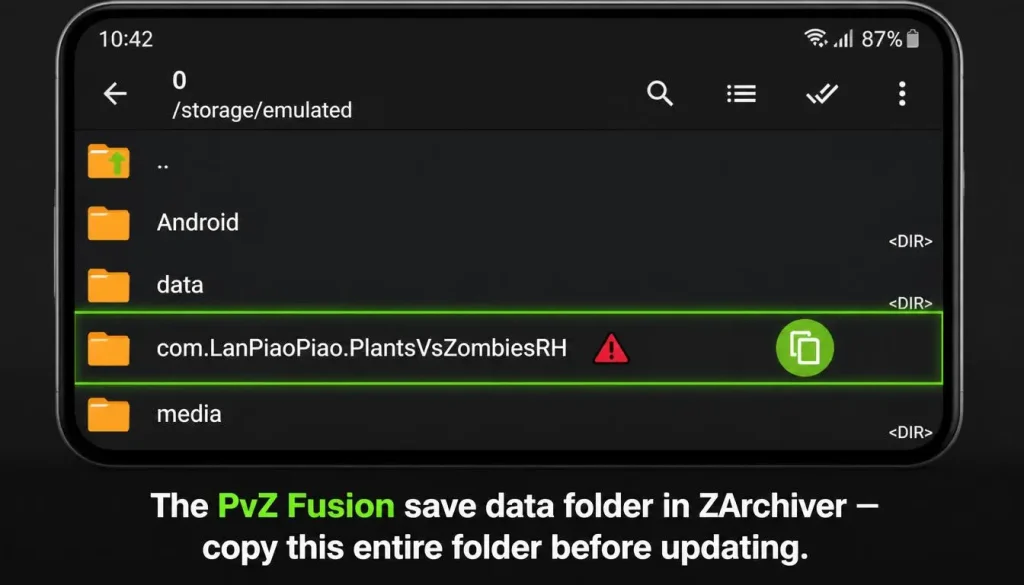
Save File Location on Android
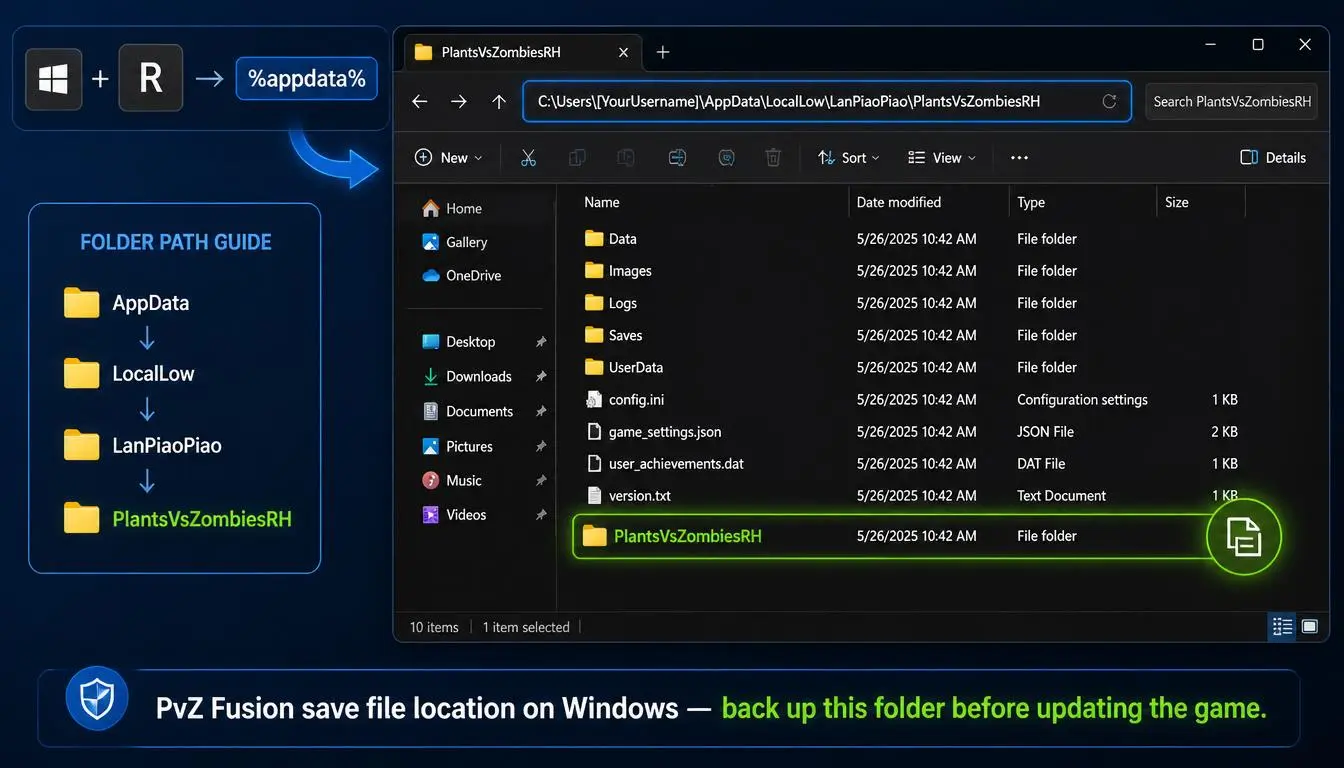
C:\Users[YourUsername]\AppData\LocalLow\LanPiaoPiao\PlantsVsZombiesRH
AppData is a hidden folder on Windows. To access it:
Or paste this directly into Windows Explorer’s address bar:
%userprofile%\AppData\LocalLow\LanPiaoPiao\PlantsVsZombiesRH
What to copy: Copy the entire PlantsVsZombiesRH folder to your Desktop or another drive. This is your backup. Label it with the current date.
Android Update Step by Step
Here’s a list of android update steps:
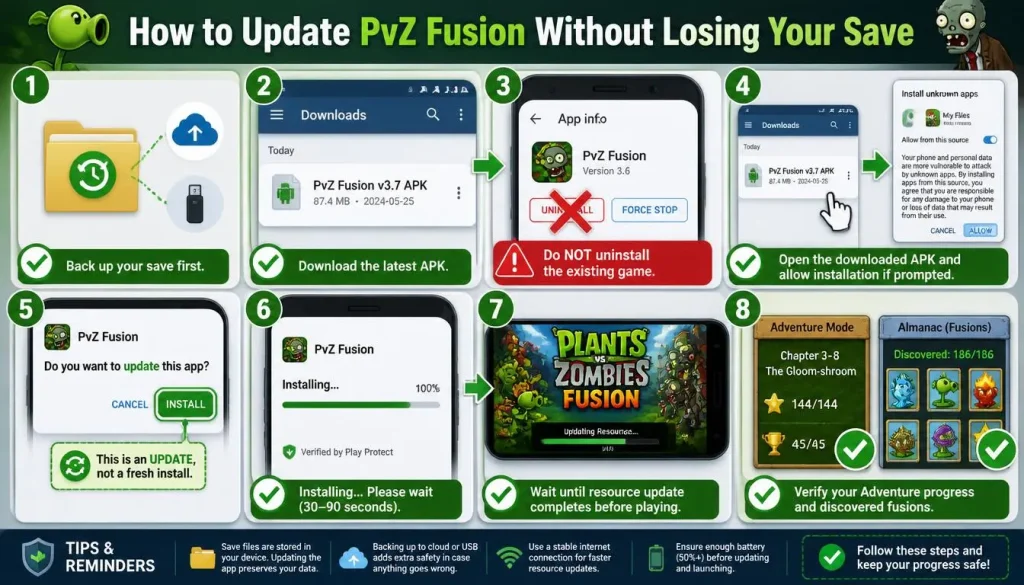
PC Update Step by Step
PC updates require a few more steps because you’re working with ZIP files rather than a managed install system.
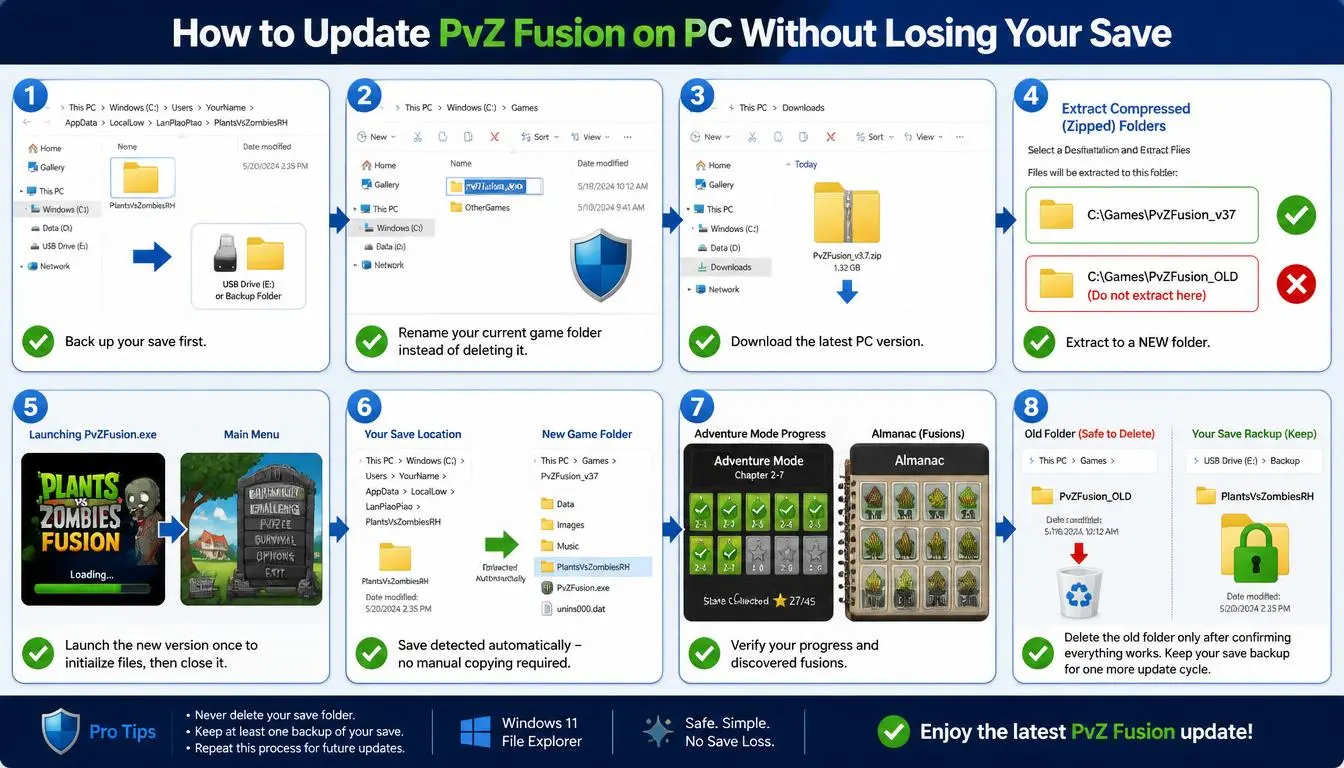
How to Restore a Lost Save
Android Save Restore:
If PvZ Fusion isn’t installed yet: Install it first, let it fully launch once, then close it. This creates the directory structure. Then paste your backup files in.
PC Save Restore:
If the folder doesn’t exist yet (because you haven’t launched the new version): launch PvZ Fusion once, close it, then paste the backup.
If You Have No Backup:
If your save is lost and you didn’t back it up, it’s gone. There’s no recovery option without a backup copy. Going forward, back up your save before every update using the steps above. The whole process takes 2 minutes.
Common Update Errors and Fixes
Error: “App not installed” on Android:
This happens when the new APK has a different signature than the installed version common when downloading from different sources. Fix: uninstall the current version, back up your save first, then install the new APK. After installation, restore your save from backup.
Error: “Parse error” on Android:
The APK file is corrupted or incompletely downloaded. Delete the APK and re-download it. This usually means the download was interrupted download on Wi-Fi rather than mobile data if this happens repeatedly.
Error: Game crashes on startup after update (Android):
Usually caused by residual cache files from the old version conflicting with the new one. Fix: Go to Settings => Apps => PvZ Fusion => Storage => Clear Cache. Do NOT tap Clear Data (that deletes your save). Clear Cache only, then restart the game.
Error: Game crashes on startup after update (PC):
Most common cause: the new version’s save structure is incompatible with an older save format. This happened specifically in the v3.0 update (major engine overhaul). Fix: rename or delete the PlantsVsZombiesRH save folder, let the game create a fresh one, and manually import specific save elements if the developer provides migration instructions in the changelog.
For the latest version’s specific known issues, always check the PvZ Fusion Changelog before updating.
Error: Save data from old version not loading in new version:
Some major updates (v3.0 specifically) changed save file formats. If your old save doesn’t load after a major version jump, the developer’s release notes will say whether save migration is supported. For v3.1.1 onward, saves transfer cleanly between versions. For v2.x to v3.x transitions, check the v3.0 changelog notes.
Error: Resources download bar stuck at a specific percentage (Android):
This is a known network timeout issue. Close the game fully, switch from Wi-Fi to mobile data (or vice versa), and relaunch. The download usually resumes from where it stopped.